
Tools & step-by-step guides
What Should I Charge? Price a Batch with The Label Lady Profit Calculator
Follow Jess’s step-by-step Profit Calculator example: batch cost, price per item, target margin, batch profit, and a practical label-planning estimate.
You know what a batch costs at the grocery store. But what should you charge for each bag, cookie, jar, or box once you add packaging, labels, labor, and the other costs of making it?
I built the Profit Calculator at The Label Lady to help you work through that question. On the page, you’ll see it called the Recipe Pricing Calculator. Quick Profit Mode starts with your total batch cost and sellable quantity, then lets you compare a planned selling price with a target margin.
Let’s use the tool’s built-in example, then add a monthly production estimate to explore packaging needs. All screenshots below show the logged-out visitor view, captured October 27, 2026.
1. Gather your batch cost and sellable quantity
Before opening the calculator, total the costs you want this product to cover. Include ingredients or materials, packaging, labels, and an appropriate allowance for labor, overhead, waste, and selling fees. Use a consistent method for allocating shared costs, such as a market fee spread across several products.
Count the items you can actually sell. If a batch makes 26 cookies but two break or are used as samples, use the 24 sellable cookies when spreading that batch’s costs. Keep your units consistent: if customers buy a bag of six cookies, calculate in sellable bags and enter the price per bag.
The tool can only subtract the costs you give it. A result that excludes your labor or payment fees has not magically covered those expenses.
2. Open Quick Profit Mode and enter the example
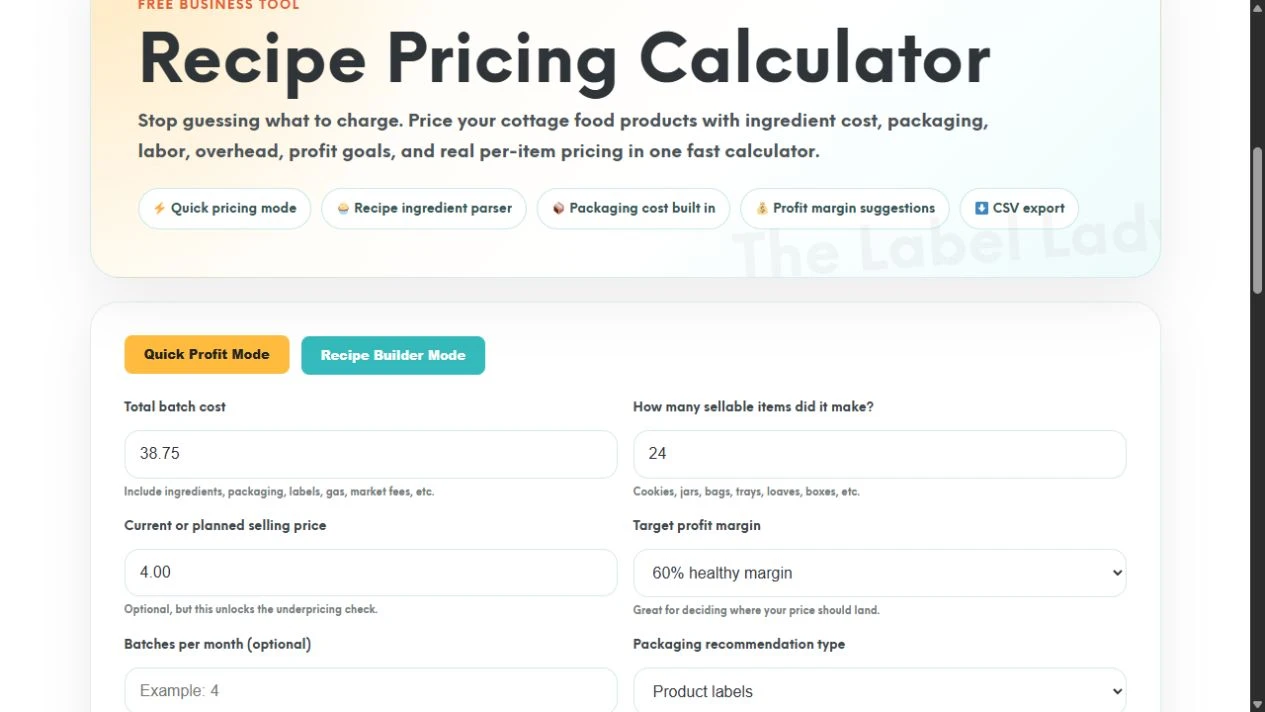
Open the free Profit Calculator, scroll to the Recipe Pricing Calculator, and choose Quick Profit Mode. You can follow along by selecting Load Example, or enter these values yourself:
- Total batch cost: 38.75
- How many sellable items did it make? 24
- Current or planned selling price: 4.00
- Target profit margin: 60% healthy margin
For the first calculation, leave Batches per month empty. Keep Product labels as the packaging recommendation type and Show a helpful price range as the label estimate setting. We’ll add the monthly estimate later.
3. Calculate and read the five main results
Select Calculate My Price. With the example values, the calculator returns:
| Result | Example | What it tells you |
|---|---|---|
| Total Batch Cost | $38.75 | The cost you entered for the batch. |
| Cost Per Item | $1.61 | Batch cost divided by 24 sellable items, rounded for display. |
| Suggested Price | $4.04 | The calculated price for the selected 60% target margin. |
| Profit Per Item | $2.39 | The $4 selling price you entered minus the unrounded item cost. |
| Profit Per Batch | $57.25 | Revenue from selling all 24 at $4, minus the $38.75 batch cost. |
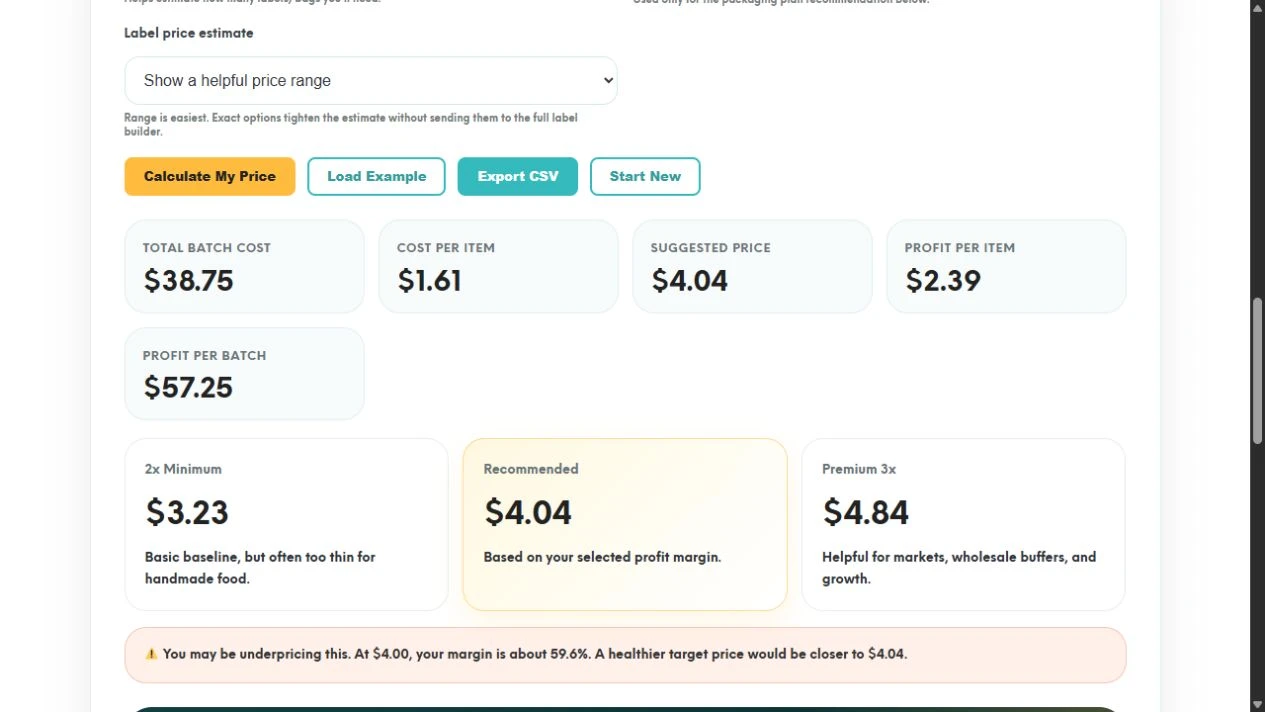
Here’s a useful check: 24 × $4 = $96 revenue, and $96 − $38.75 = $57.25. That assumes every sellable item sells at the entered price, without additional costs or discounts beyond those included in your inputs.
The calculator uses unrounded values internally. Multiplying the displayed $2.39 by 24 will not exactly reproduce the batch result because the per-item figure has already been rounded.
4. Understand the margin check before changing your price
The tool also shows 2x Minimum at $3.23, Recommended at $4.04, and Premium 3x at $4.84. These are calculation comparisons, not proof that customers will pay a particular price or that any option covers costs you left out.
A 60% margin is different from adding 60% to cost. In this example, the target-price calculation divides the unrounded cost per item by 0.40. At the entered $4 selling price, the tool reports a margin of about 59.6%, so it flags that the price is slightly below the selected 60% target.
That warning is a prompt to review your numbers. Consider your actual costs, positioning, competitors, and customers before deciding what to charge. If you change the planned selling price, select Calculate My Price again to update the profit check.
5. Add monthly batch frequency for packaging planning
Now enter 4 in Batches per month (optional). This means four batches of this same product per month, each making 24 sellable items. Keep the packaging setting on Product labels and select Calculate My Price again.
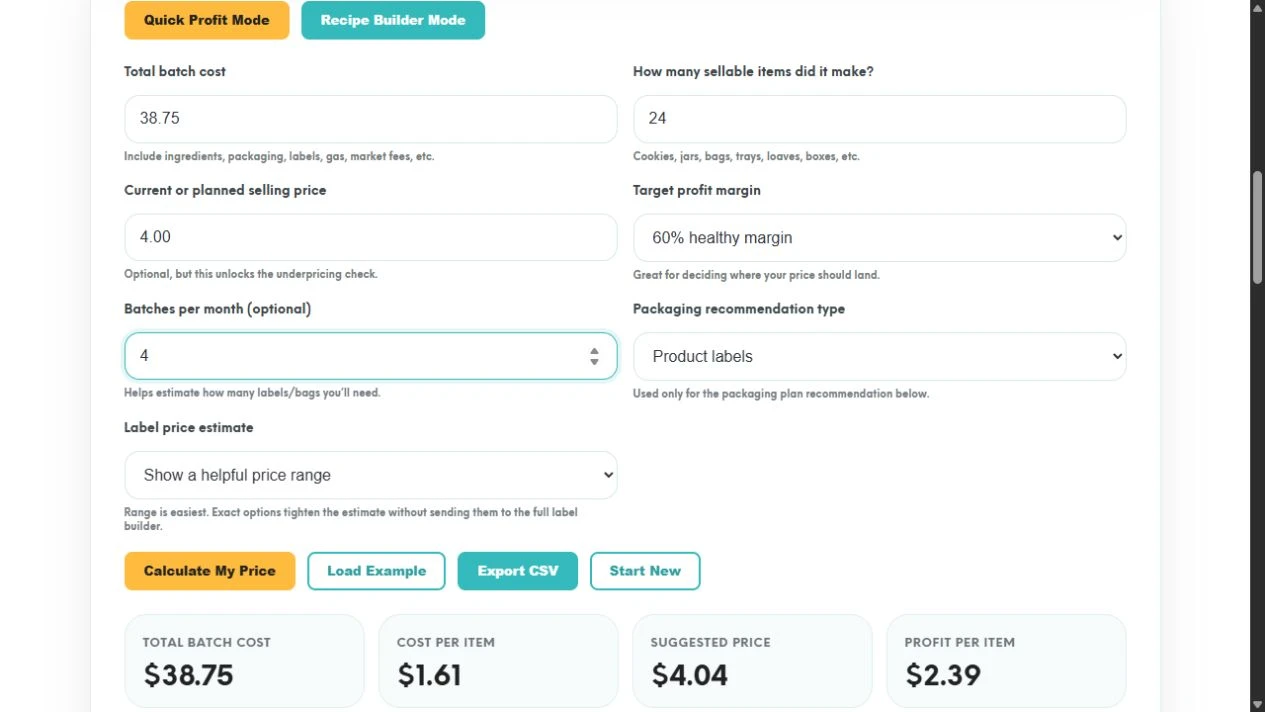
The packaging plan now estimates 96 labels or packages per month: 24 items multiplied by four batches. For planning purposes, check how many labels each package actually needs; a front label plus a separate ingredients label may require two labels per finished item.
6. Review the packaging plan as a starting point
The example plan adds a 25% buffer for samples, mistakes, markets, and growth, then recommends 250 labels as the best fit from its available order tiers. The monthly use estimate is still 96; 250 is an order quantity, not a prediction that you will use 250 labels every month. The buffer alone would bring 96 to 120 before the tool selects an available tier.
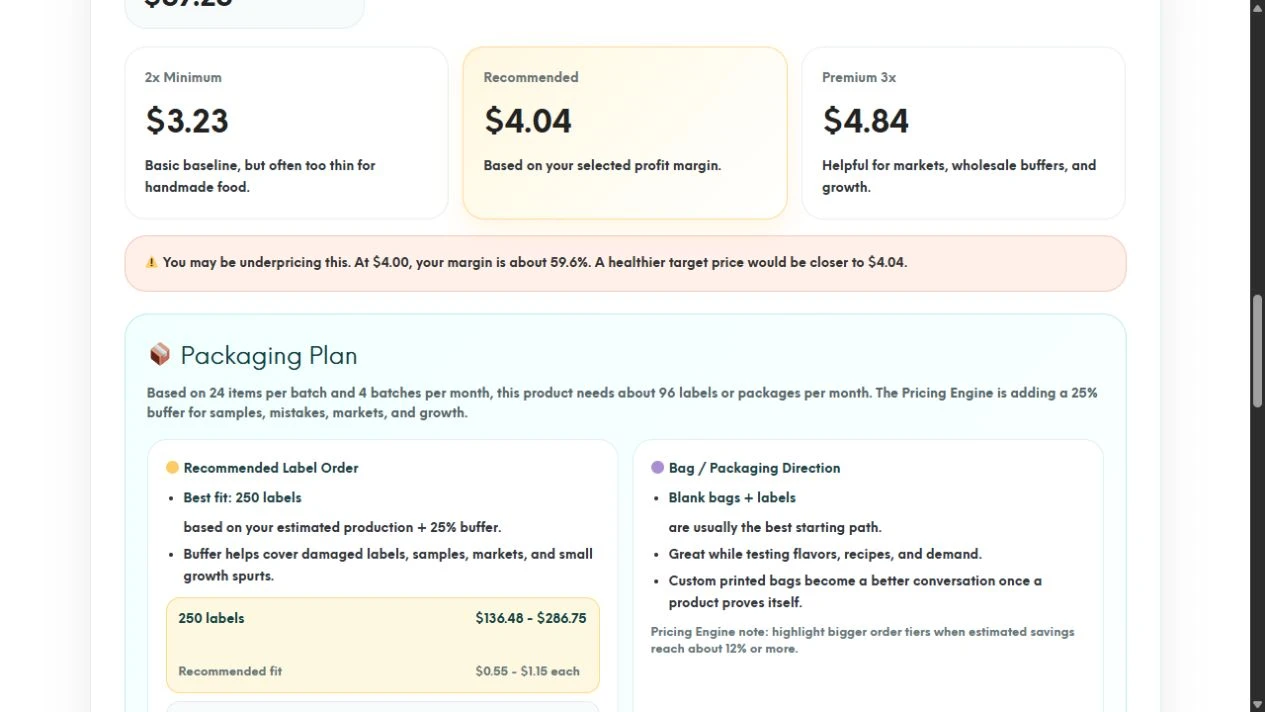
The displayed price ranges span different label specifications. They are estimates captured at a point in time, not a quote for your exact size, material, shape, or artwork. Use the Custom Product Labels quoter for current selections and pricing.
Still choosing a size? My label sizing and quote walkthrough shows how to measure your package and move a suggested size into the quoter.
7. Export your result and repeat for another product
Select Export CSV to download the calculation. In the tested example, the file included batch cost, item count, cost per item, comparison prices, the selling price checked, profit per item, profit per batch, and margin percentage.
Keep your ingredient and expense notes with the export so you know what went into the number. Use Start New when you’re ready to clear the form for another product. This walkthrough uses Quick Profit Mode; Recipe Builder Mode is a separate option when you want to work through recipe details.
Recalculate when ingredient prices, packaging, batch yield, fees, or your selling price change. The most useful result is one based on the product you are making now.
Work through your own batch
Open The Label Lady Profit Calculator, enter your costs and sellable quantity, and check your current price. When you’re ready for packaging, compare custom label options or ask Jess for help.