
Tools & step-by-step guides
From “What Size Label?” to a Custom Label Quote: A Step-by-Step Guide
Follow Jess’s screenshot guide to finding a label size, choosing roll label options and getting a custom label quote with The Label Lady’s online tools.
Screenshots and example pricing checked October 27, 2026.
You have the product. You have the container. Now you’re staring at that empty space on the front, wondering what size label to order and how much it’s going to cost.
That’s exactly the kind of question I built my tools at The Label Lady to help with. You can start with your package measurements, get a suggested label size and work through a roll label quote at your own pace.
Let me walk you through one example. Keep your own package nearby so you can follow along with the measurements that matter for your product.
1. Measure the space you can actually label
Measure the usable front of your container, not just its outside dimensions. On a pouch, leave out the zipper, seams, folds and any area where the label would run over an edge.
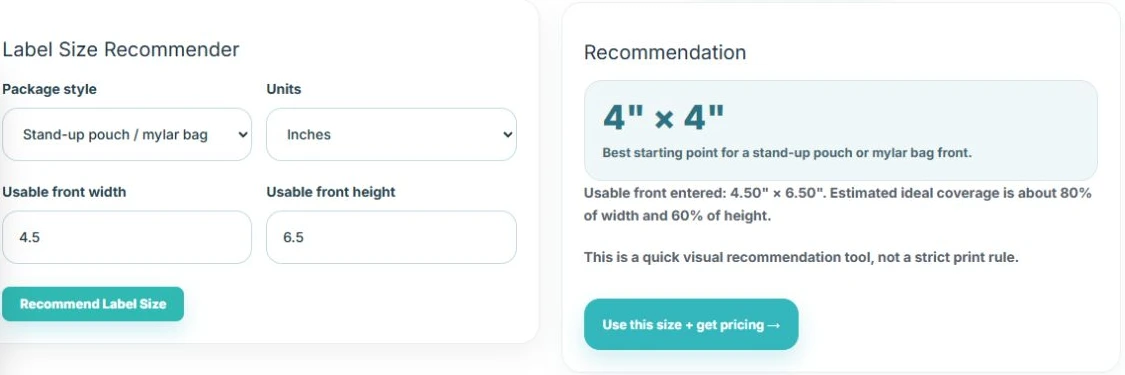
Write down the width and height and keep your units consistent. For this walkthrough, I’m using inches and a usable front measuring 4.5 × 6.5 inches.
If you’re working with a jar or bottle, choose that package style in the tool and follow the fields it shows for your container. Don’t force a curved package into the pouch example.
2. Open the Label Size Recommender
Go to my Label Size Recommender. If you land at the tools hub, choose Find a label size or open Label Size Recommender in the label workspace.
- Choose Stand-up pouch / mylar bag under Package style.
- Choose Inches under Units.
- Enter 4.5 for Usable front width.
- Enter 6.5 for Usable front height.
- Select Recommend Label Size.
In this example, the tool suggests 4" × 4". It also repeats the measurements you entered, which gives you a quick chance to catch a typo.
3. Check that size on the actual package
Before you fall in love with the number, cut a 4-by-4-inch square from paper and hold it against the pouch.
Check that it stays inside the usable area, looks balanced and leaves enough space for your actual label content. If you already have artwork, print a proof at its finished size and check the smallest text.
The recommender helps you choose a starting size. It doesn’t check your artwork, required label wording or how an adhesive will perform on your packaging. Those details still need their own review.
4. Carry your size into the roll label quoter
Open the Custom Product Labels quoter and select Build your label quote if needed. For this example:
- Choose Square under Step 1: Shape.
- Enter 4 in Size (inches). Square labels use one size field because the sides match.
- Under Step 3: Material, choose Gloss for this sample quote.
If you choose a rectangle instead, the quoter shows separate width and height fields. Enter your finished label dimensions, not the pouch dimensions you used in the recommender.
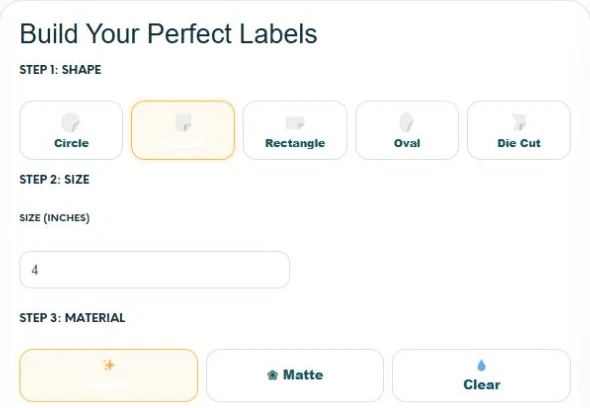
Choose the finish for your actual product. If you’re deciding between gloss and matte, my glossy-versus-matte label guide explains why material, adhesive and protection matter alongside appearance. Ask me about suitability if your package will face moisture, cold storage or heavy handling.
5. Set your quantity, designs and artwork support
Under Step 4: Quantity, choose 1,000 to match this walkthrough. Then set Design variations to 1.
A different flavor, scent, product name or artwork version can count as a variation. If you have several designs, enter the appropriate variation count and tell me how you want the total quantity divided. Don’t assume that choosing 1,000 means 1,000 of every design.
Open Artwork & Design. For our example, select I have print-ready artwork. If you need me to create the design, select the custom label design option instead. The page also offers a separate File Review & Print Check option; review the displayed charges before choosing extras.
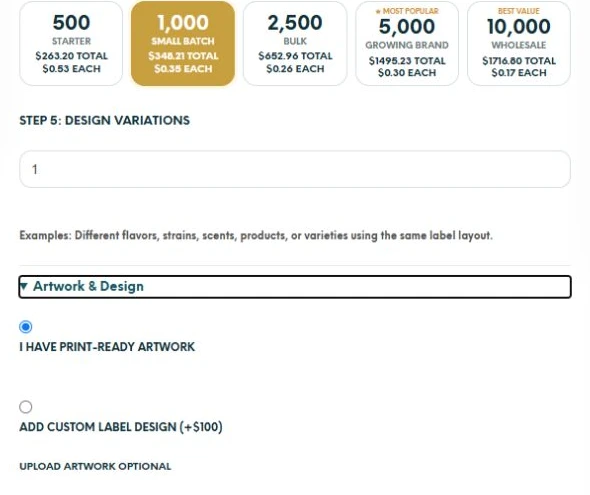
You can explore pricing without uploading a file. The page says artwork can be uploaded after checkout if needed.
6. Let the quote finish calculating, then check the total
Give the quoter time to update after changing an option. When it has finished, compare the total price and the displayed per-label price. Check that your quantity, size, material, variations and artwork choices still match what you intended.
On October 27, 2026, this example showed $348.21 total and a rounded display price of $0.35 per label. That is a snapshot of these specific selections, not a standing price promise. Use the live quoter for your current options and pricing.
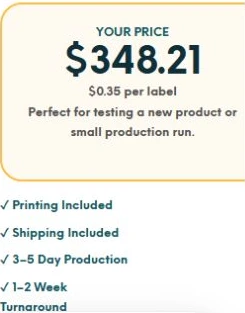
The page lists printing and shipping as included. It also displays production and turnaround information and says production begins after artwork approval and payment. Check the current timing before planning a launch or market date.
If the tool stays on Calculating, shows Unavailable or can’t calculate a price, don’t treat that as a completed quote. Check your selections and send me the specifications if you need help.
7. Review before you move forward
Before using Add to Cart or Save This Quote, give your selections one last look:
- The label fits the usable area of your real container.
- The shape and finished dimensions are correct.
- The material suits your intended use.
- The quantity and design count match your plan.
- You’ve chosen the artwork support you actually need.
- The displayed total and current timing work for your project.
For this walkthrough, we stop at the calculated quote. You can use the tools to plan before deciding whether you’re ready to order.
Use the same approach for your next project
You don’t have to solve every packaging question at once. Start with the package, check the fit, then compare the options that affect your price.
If you need something beyond roll labels, my tools hub also links to quoters for printed Mylar bags, vinyl banners and table covers. Each has its own specifications, so follow the fields for that product.
Let’s get your packaging moving.
Find a starting label size, then build your roll label quote. If you get stuck, send me a photo of your package and your measurements. I’ll help you work through the next step.
Written by Jessica Trimm, URGrafix and The Label Lady, Colville, Washington.