
Tools & step-by-step guides
Will Your Tables Fit? Try the Free URGrafix Booth Layout Planner
Plan your market booth with the tables you own. Follow the screenshot walkthrough, catch fit conflicts, and connect a workable setup to The Label Lady quote builders.
You have a market space booked, a couple of folding tables, and a growing pile of things to take. Before you load the car, there is one useful question to answer: will that setup actually fit?
I built the free URGrafix Booth Layout Planner to help you try an arrangement on screen first. Choose your footprint, add the tables you own, include your display extras, and compare layouts. You can use it without signing up.
Here is a walkthrough with screenshots of the tool, including what happens when the selected items do not fit.
1. Start with the space you actually booked
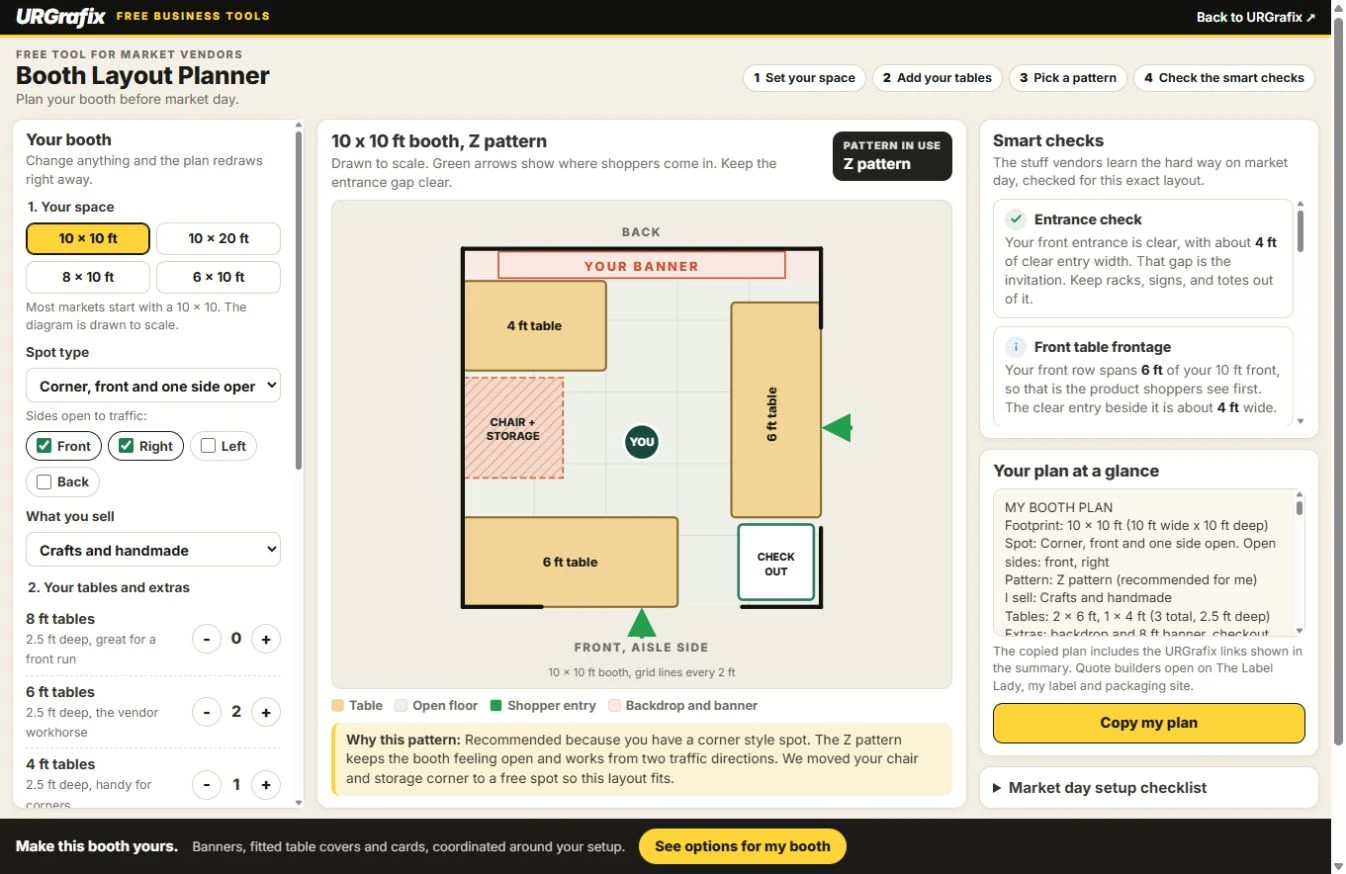
Choose a 10 x 10, 10 x 20, 8 x 10, or 6 x 10 ft footprint. Then select your spot type: inline, corner, end cap, or island. Check the sides open to traffic, and choose what you sell.
The diagram labels the back and the front aisle side, so you can keep your orientation straight while comparing arrangements. An open side means it faces traffic; a green arrow does not certify that the walking route is clear.
2. Add your tables before choosing more equipment
Use the plus and minus buttons for 8 ft, 6 ft, and 4 ft tables. The planner models these tables as 2.5 ft deep. Add or remove the backdrop, checkout counter, chair and storage corner, clothing rack, or shelf to match what you intend to bring.
Measure your real equipment. An extra-deep table or a rack with wider feet can change the result. The drawing is a simplified planning model, so the final check still happens with your actual items.
Leave the pattern on Recommend for me for a starting arrangement, or compare the Z, U, L, V, perimeter, and tables-set-back options. A pattern suggestion is a starting point. It still has to pass the fit check for your selected items.
In this version, the recommender tests the available arrangements and looks for free positions for extras. If an item cannot be placed, it is named in the fit warnings instead of being drawn on top of another item.
3. If it does not fit, the planner stops you
Changing the same example to a 6 x 10 ft booth produces a red “This won't work” warning. The selected 8 ft banner is wider than the booth, and the chair/storage corner cannot be placed with this arrangement.
The planner avoids drawing tables and extras on top of each other or outside the available footprint. If a selected table or extra cannot be placed, it names the item in the warning. While there is a fit conflict, Copy my plan and the customization/quote options are disabled.
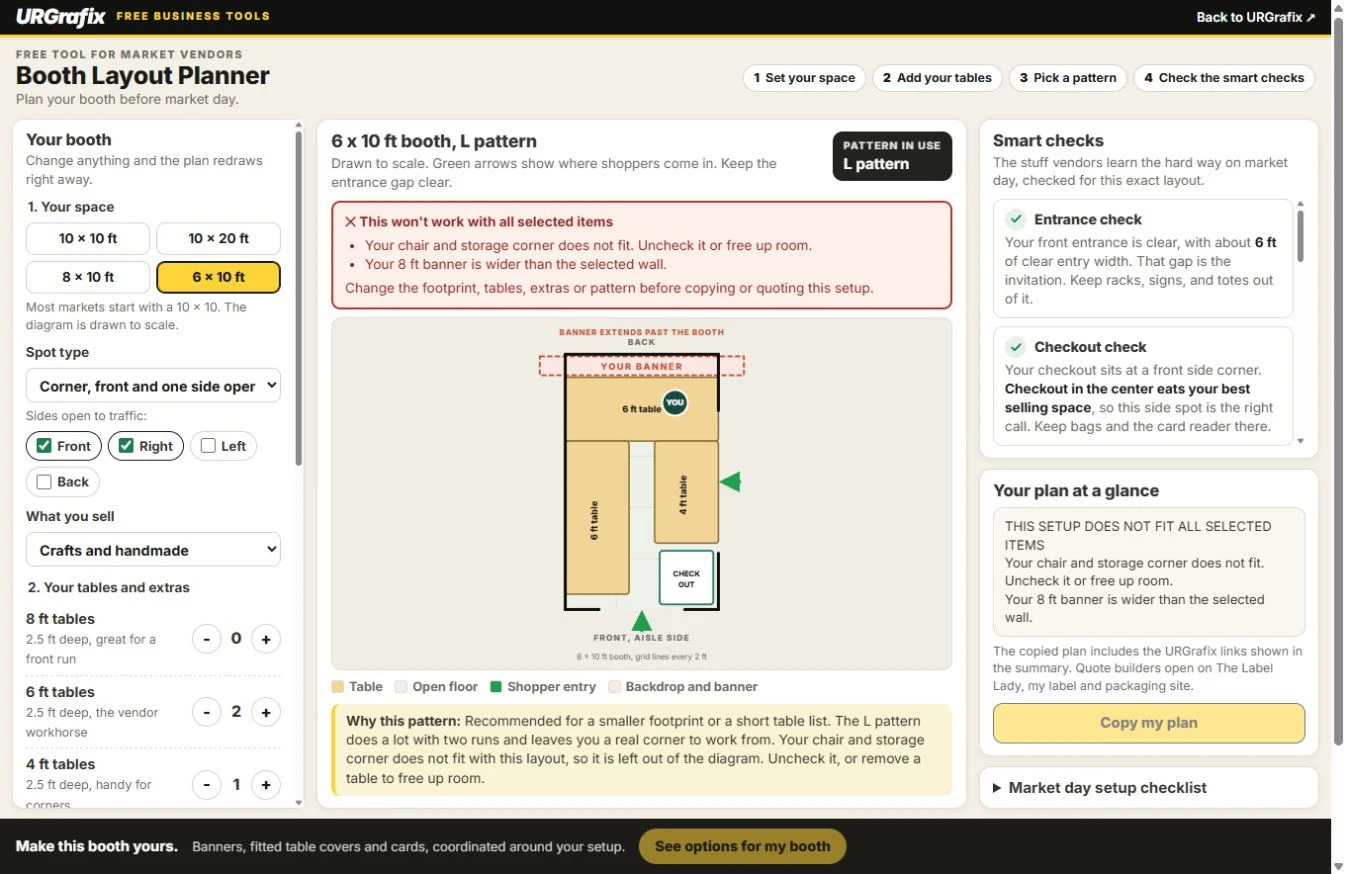
Try fewer or smaller tables, remove an extra, choose a larger footprint, or switch the layout. A warning means the current arrangement does not work as drawn; another arrangement may work with the same equipment.
4. Read the setup checks, then do a real mock setup
Once the fit warning clears, review the banner-width, table-cover, checkout, and floor-space information. Read the entry and frontage notes, then check the actual route around the equipment. Total open square footage alone does not tell you whether there is a continuous usable path.
Before market day, lay out the real equipment at home. Check movement around tables, access to stock, where customers will stand, and the organizer's requirements. This tool does not certify accessibility, traffic flow, weather safety, or event compliance.
Open the Market day setup checklist for practical reminders, then use Copy my plan to keep the setup notes for yourself or a helper.
5. Turn a workable layout into a coordinated booth
Select See options for my booth to open Make this booth yours. The panel links to the relevant URGrafix offers and my established Label Lady quote builders. Your plan summary records the equipment you selected, so you can take those details into the quoters.
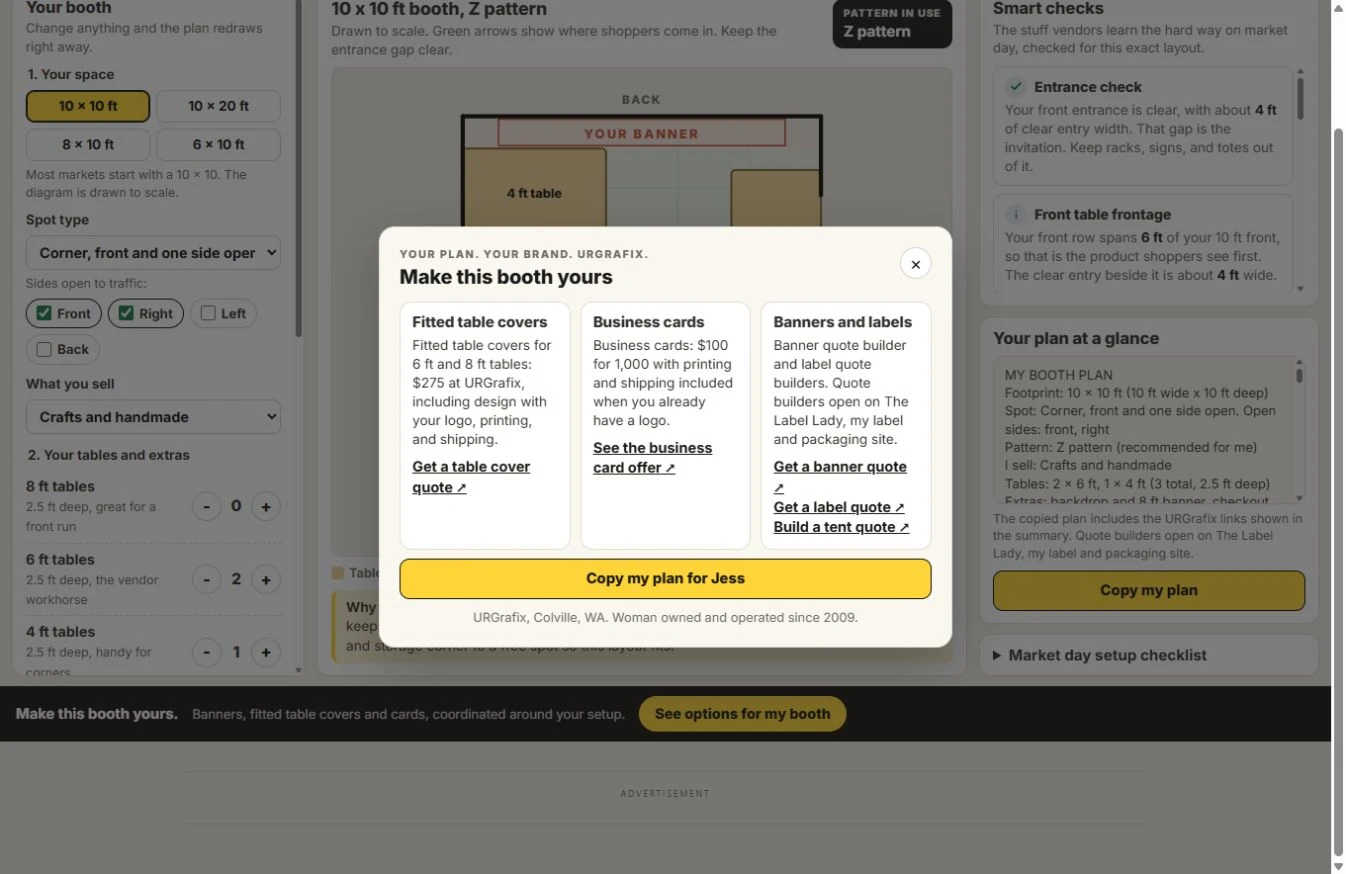
- Vinyl banner quoter: choose the finished banner dimensions, quantity, and design options.
- Table-cover builder: select the right table size and cover style for your setup.
- Tent builder: explore canopy and wall options, checking their dimensions against your event space.
- Product-label quoter: coordinate the packaging on your table with the rest of your branding.
The copied plan includes the customization ideas and links, so you can bring your setup notes into the next step. The planner does not automatically fill out the separate quoters or create an order. Select and confirm your product specifications there.
Need help pulling the pieces together? Include your copied plan, logo, table measurements, and event date when you ask me about the full setup. Banners, table covers, cards, and packaging can all look like they belong to the same business.
Try your setup before market morning
Start with what you own, compare a few arrangements, and fix the conflicts before ordering the next piece. That is the job of this tool: give you a practical starting plan you can test in real life.